

Introduction #
This guide explains how to read the Qilowatt app dashboard and what the different indicators and sections mean.
The dashboard provides a clear and comprehensive overview of all your devices in one place, helping you better understand energy flows, costs, and revenue.
The dashboard provides a clear and comprehensive overview of all your devices in one place, helping you better understand energy flows, costs, and revenue.
How to read the dashboard? #
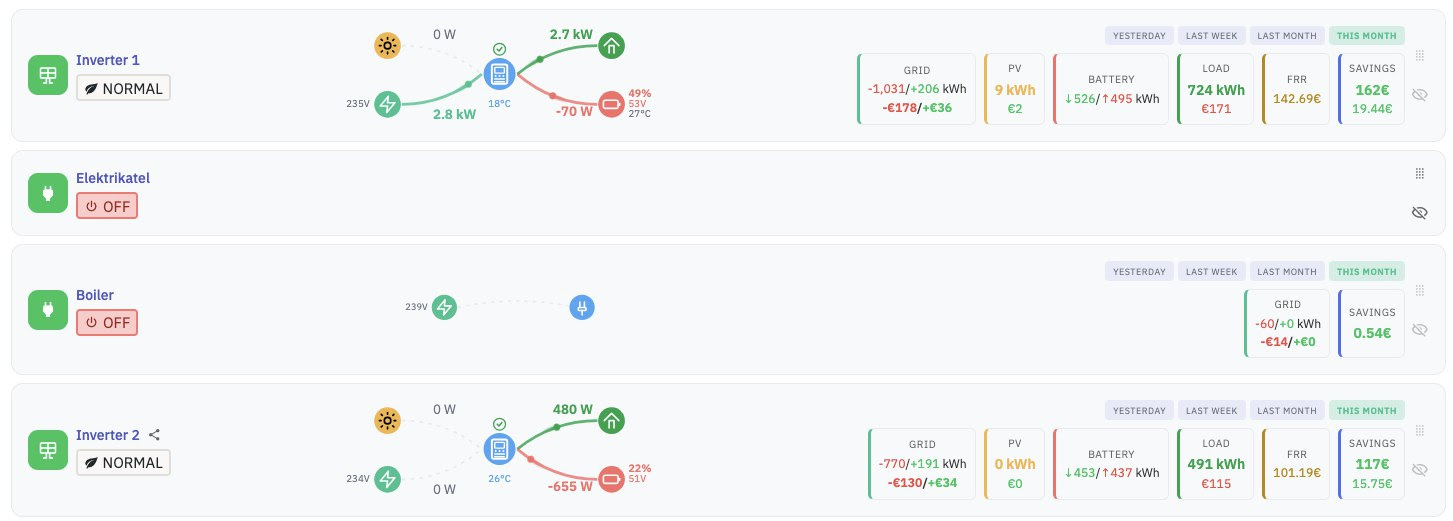
Device status #
- A green icon next to the device name indicates that the device is online.
- Below the device name, the current status is displayed:
- Boilers – ON / OFF status
- Inverters – current work mode
👉 To change the work mode, click on the work mode button.
Animated energy flow
#
In the main view, you will see a real-time animated diagram that visualizes your energy flows.
This provides a detailed overview of:
• where energy is coming from,
• where it is going,
• how your system is currently operating.
This provides a detailed overview of:
• where energy is coming from,
• where it is going,
• how your system is currently operating.
Statistics section #
Below each device, there is a statistics section displaying both energy values (kWh) and financial results.
• Grid – Energy purchased from or sold to the grid and its total cost including all fees.
• PV – Solar production and revenue calculated at the spot market price at the time of generation.
• Battery – Charged and discharged energy.
• Load – Building consumption and its cost based on the spot price at the time of usage.
• FRR – Revenue earned from the balancing market (if activated).
• Savings – Total monetary savings and savings + FRR revenue combined.
• PV – Solar production and revenue calculated at the spot market price at the time of generation.
• Battery – Charged and discharged energy.
• Load – Building consumption and its cost based on the spot price at the time of usage.
• FRR – Revenue earned from the balancing market (if activated).
• Savings – Total monetary savings and savings + FRR revenue combined.
Time intervals #
You can select a preferred time period to view statistics for:
• Current month
• Previous month
• Last week
• Yesterday
This allows you to compare performance across different periods.
• Current month
• Previous month
• Last week
• Yesterday
This allows you to compare performance across different periods.
Device management #
Using the icon in the top right corner, you can:
• Sort devices
• Hide devices that you do not currently want to monitor
Hidden devices appear at the bottom of the view under “Hidden devices”.
• Sort devices
• Hide devices that you do not currently want to monitor
Hidden devices appear at the bottom of the view under “Hidden devices”.


