

Introduction #
Configuring the energy profile in the Qilowatt app ensures that your system correctly calculates energy purchase, sales, and network costs. This allows the Optimizer to make accurate decisions based on your specific electricity contracts and tax setup.
Prerequisites #
• Qilowatt account created → Creating a user account
• Device connected to WiFi → Connecting a device to WiFi
• Inverter added to the Qilowatt app → Module setup
• Solar plant and battery data correctly configured → Solar inverter setup
• Device connected to WiFi → Connecting a device to WiFi
• Inverter added to the Qilowatt app → Module setup
• Solar plant and battery data correctly configured → Solar inverter setup
Step-by-step Guide #
1. Open device information #
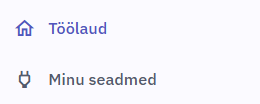
• Log in to the Qilowatt app and from the left menu, under Dashboard or My Devices choose the programmable device (e.g., Qilowatt Modbus R2).
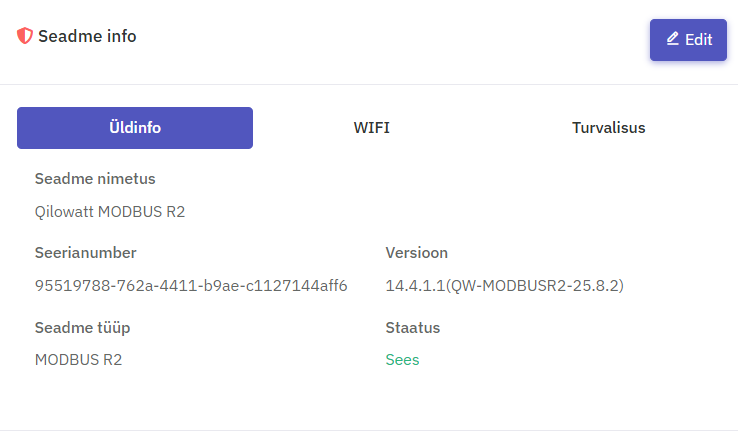
• On the device page, locate the Device Info section and click Edit
2. Energy profile #
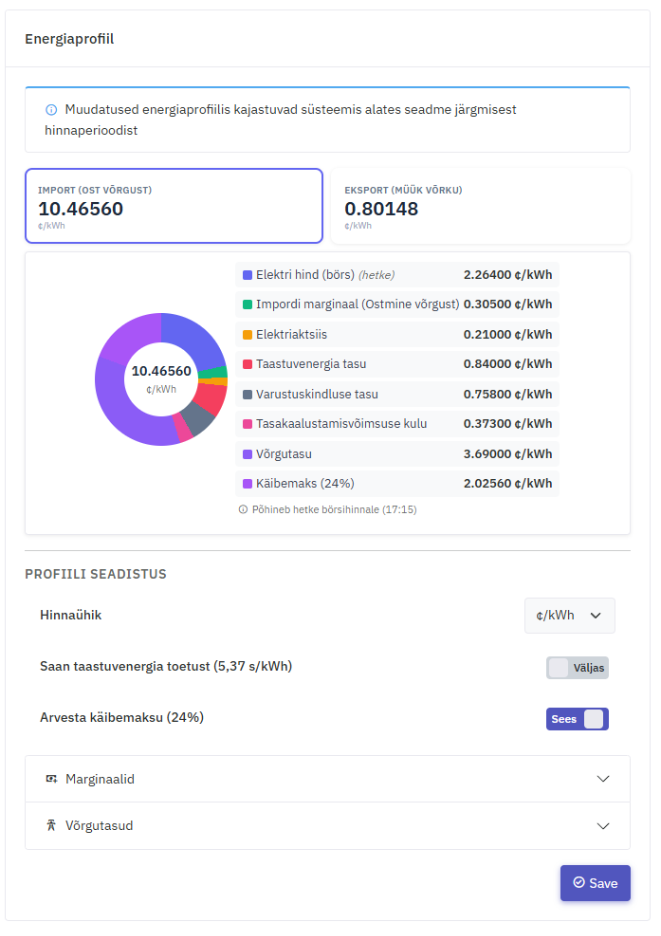
The Energy Profile displays the final import and export prices (buy and sell prices) as well as all price components separately. The price is calculated automatically based on the selected parameters.
For example, when selecting a fixed electricity price where daytime and nighttime prices differ, the system automatically calculates the correct price, also taking into account weekends and public holidays. Public holiday dates are displayed in the network fees section.
By clicking on the Export value, the export price components will be displayed.
By clicking on the Export value, the export price components will be displayed.
By clicking on the Export value, the export price components will be displayed.
3. General settings #
Price Unit
Choose how energy costs and production are displayed.
• €/MWh – euros per megawatt-hour
• €/kWh – euros per kilowatt-hour
• c/kWh – cents per kilowatt-hour
Choose how energy costs and production are displayed.
• €/MWh – euros per megawatt-hour
• €/kWh – euros per kilowatt-hour
• c/kWh – cents per kilowatt-hour
I receive renewable energy support (5.37 c/kWh)Enable this option if you receive renewable energy support. In this case, the support payment is added to the export price when the spot market price is above zero.
Include VAT (24%)
• Enable if you are a private consumer.
• Disable if you are a VAT-registered company.
• Enable if you are a private consumer.
• Disable if you are a VAT-registered company.
Note! Margins must be entered into the energy profile without VAT. The system will calculate VAT automatically.
4. Margin settings #
Disable if you are a VAT-registered company.
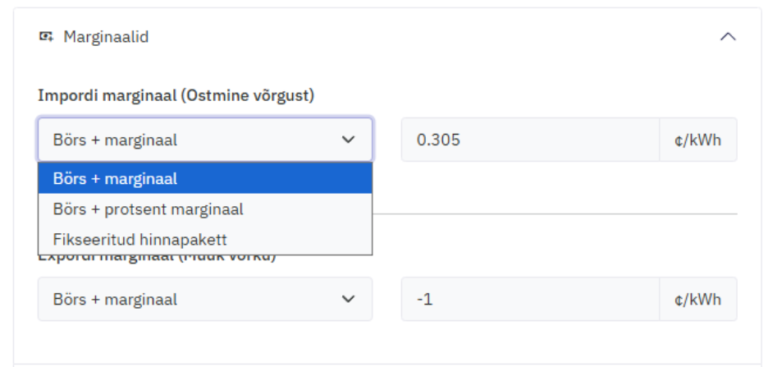
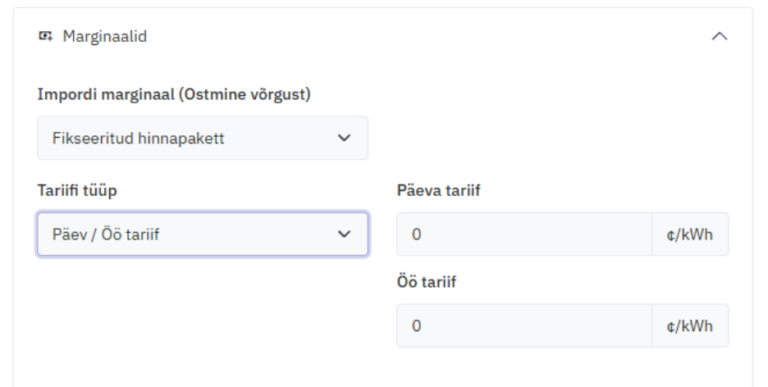
Select the option according to the contract you have with your electricity supplier.
• Spot + margin – if the contract is linked to the spot market price with an added fixed margin.
• Spot + percentage margin – if the contract is linked to the spot market price with an added percentage margin.
•Fixed price package – if the contract has a fixed price. Select the tariff type depending on whether the contract has the same price for the entire day or different prices for daytime and nighttime.
Select the option according to the contract you have with your electricity supplier.
• Spot + margin – if the contract is linked to the spot market price with an added fixed margin.
• Spot + percentage margin – if the contract is linked to the spot market price with an added percentage margin.
•Fixed price package – if the contract has a fixed price. Select the tariff type depending on whether the contract has the same price for the entire day or different prices for daytime and nighttime.
Export Margin (Selling to the grid)
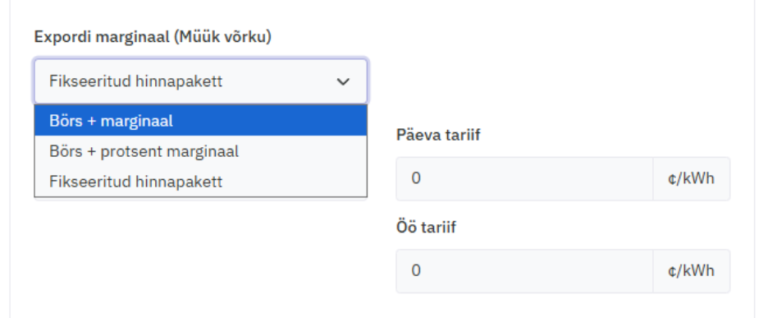
Select the option according to the contract you have with your electricity supplier.
• Spot + margin if the contract is linked to the spot price with an added fixed margin. Enter this value as negative (with a minus sign).
• Spot + percentage margin – if the contract is linked to the spot price with an added percentage margin. Enter this value as positive.
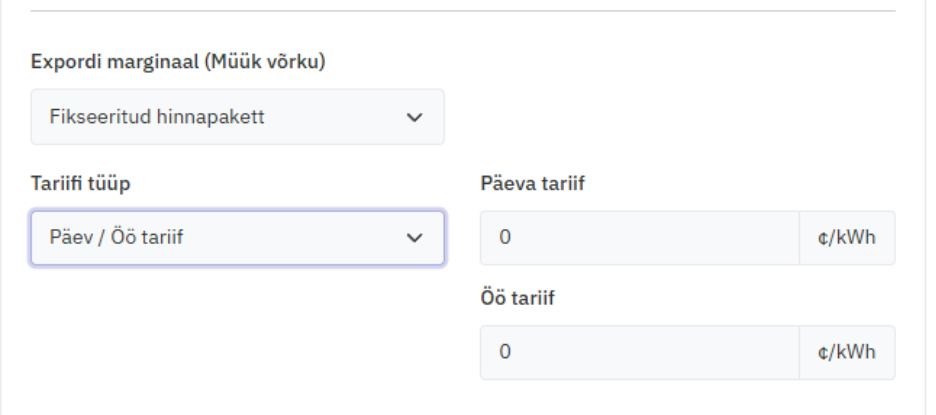
• Fixed price package – if the contract has a fixed price. Select the tariff type depending on whether the price is the same throughout the day or differs between day and night. Enter this value as positive.
Select the option according to the contract you have with your electricity supplier.
• Spot + margin if the contract is linked to the spot price with an added fixed margin. Enter this value as negative (with a minus sign).
• Spot + percentage margin – if the contract is linked to the spot price with an added percentage margin. Enter this value as positive.
• Fixed price package – if the contract has a fixed price. Select the tariff type depending on whether the price is the same throughout the day or differs between day and night. Enter this value as positive.
Note! Export and import margins are different. Make sure you enter the margins for selling electricity back to the grid here.
4. Network fees configuration #
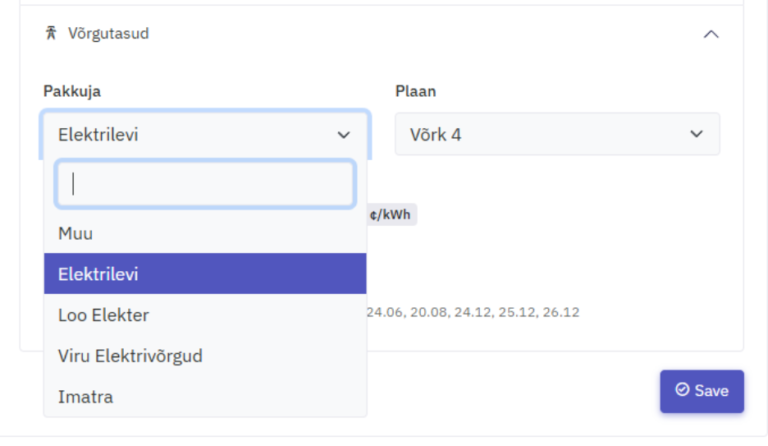
Provider
Select the grid operator whose service you use.
Select the grid operator whose service you use.
Plan
Select the network tariff package you are using.
Note! If you cannot find a suitable option in the list, please contact us.
Select the network tariff package you are using.
Note! If you cannot find a suitable option in the list, please contact us.
Once all information has been entered, click the “Save” button.
Result #
Your energy profile is now configured. Qilowatt uses these parameters to calculate energy costs, revenues, and optimize energy flows in real time.
If it Doesn’t Work #
• If the system does not respond as expected, check the margin values.
• If sales happen at a loss, ensure that the sales margin is entered as a negative value.
• If the problem persists, contact the Qilowatt support team: support@qilowatt.eu
• If sales happen at a loss, ensure that the sales margin is entered as a negative value.
• If the problem persists, contact the Qilowatt support team: support@qilowatt.eu


